


AI Video Generator-HiCut
3.0221.00 Reviews
App Specs
- Version
- 2.5.1
- Updated On
- License
- Free
- Downloads
- 1,000,000+
- Developer
- Songzan
- Categories
- Art & Design
- Platform
- Android, iOS
Screenshots

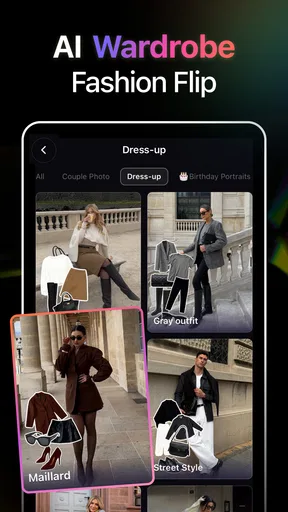
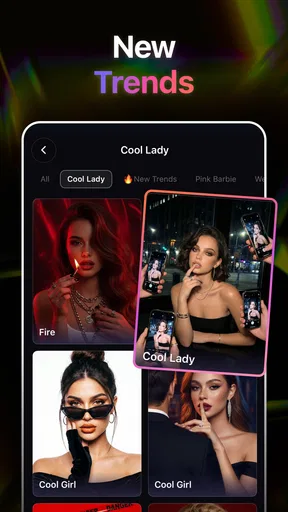
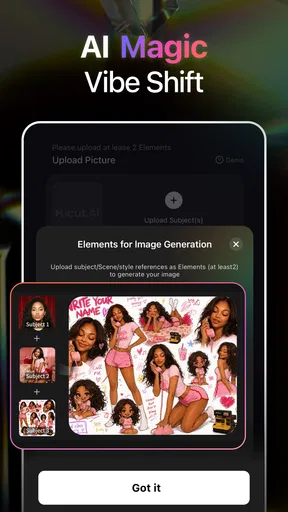
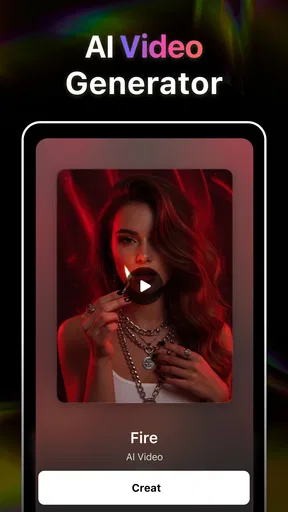
 Analysis by AppCompare
Ever wondered how those slick, professional-looking videos you see online are made? Well, I stumbled upon an app that might just be the answer. It's called AI Video Generator-HiCut, and it’s like having a mini film studio right in your pocket. I gave it a spin, and here’s what I found.
A quick note on what HiCut is best suited to do
Before deciding whether it belongs on your phone, I’d separate playful video making from full-scale editing. AI video effects, face swaps, filters and morph-style transformations make HiCut most appealing when the goal is a quick, eye-catching clip rather than a carefully assembled film. I’d reach for it to make a lighthearted post, try a visual idea, or give a short video a more unusual look. If I needed detailed control over a long project, I’d choose a conventional video editor instead.
That distinction matters because the app’s name can sound broader than the experience a person may be looking for. “AI video generator” might suggest that a finished video can be produced from a short prompt alone. I would approach it instead as a creative mobile tool centered on visual transformations and effects. It makes sense for people who want to experiment with a face or image in motion; it is less suitable for someone expecting a complete production workflow with precise timeline editing, detailed audio mixing and extensive control over every cut.
Readability and navigation in everyday use
First things first, downloading and setting up AI Video Generator-HiCut is a breeze. Available for both Android and iOS, it’s super easy to find and install. Once you open the app, you’re greeted with a clean, intuitive interface that doesn’t overwhelm you with too many options. Perfect for someone like me who isn’t exactly a tech wizard!
For a new user, a simple-looking screen can make the first creative step feel less intimidating. I’d still take a moment to look at the labels and previews before choosing an effect: with transformation apps, it’s easy to tap something appealing and only then discover that it changes the whole character of a clip. Starting with a short, unimportant test video is a useful way to learn the layout without spending time preparing a post you already intend to share.
HiCut is an app from Songzan in the art and design space. It is free to install, with optional in-app purchases, and its age rating is Everyone. It has an average rating of 3.5 from around 5,100 ratings, alongside roughly 156 written reviews, and has passed one million installs. Those figures suggest that plenty of people have tried it, but I wouldn’t use popularity as a substitute for checking whether its particular style fits your needs. The current version is 2.3.5, and it requires Android 8.0 or later on Android devices.
The Magic of AI-Powered Editing
This app’s standout feature is its AI-powered editing. You simply upload your clips, and the AI does its magic—think of it as having a tiny director inside your phone. It analyzes your footage and suggests the best edits, transitions, and even music. I was genuinely surprised at how good the suggestions were. It's like the app knew exactly what vibe I was going for.
Worth Reading Before You Choose

EA SPORTS FC Mobile 26 Is a Bigger Football Game, but It Takes Time

Flipboard Shows What News Apps Must Do Beyond the Feed

Switching to Android Auto Means Rethinking Your Driving Routine

Google Calendar Makes a Crowded Week Easier to Manage

Ludo King Makes the Most of the Minutes Between Plans

Baby Panda World Brings Quick Play to Modern Phones, but Its Game Library Feels Busy
One thing I loved was the ability to tweak the AI’s suggestions. You’re not stuck with what it gives you. Want to swap out a transition or change the music? No problem. The app gives you the creative freedom to make those changes without any hassle.
Choosing a workflow that suits the clip
For a casual social post, I’d keep the project deliberately small: choose one clear subject, test a single transformation, then compare the result with the original before adding more visual treatment. That sequence helps me judge whether the effect actually improves the clip or merely makes it busier. A face swap or strong morph can be funny in a brief moment, but it may distract from the story if every shot uses a different look.
A practical example is a short birthday greeting recorded at home. I might try a playful effect on one moment, then keep the rest simple so the message remains easy to understand. I would also watch the clip once with the sound on and once muted. If the joke only works with a particular sound cue, that is useful to know before sharing it somewhere viewers may scroll with their audio off. This is a small editing habit, but it often makes the difference between a clip that reads clearly and one that feels confusing.
For a more polished result, I’d treat HiCut as one stage in a wider process rather than assume it has to do everything. Make the visual experiment here, save the version you like, and use a standard editor if you then need exact trimming, captions or a carefully ordered sequence. The trade-off is an extra handoff between apps; the benefit is not forcing an effects-focused tool to handle fine editing that another app may do better.
Motor and sensory considerations
Short, direct interactions are generally easier to manage than a long chain of tiny adjustments, especially on a phone screen. I’d work through one choice at a time and pause to preview the result rather than rapidly stacking effects. That gives more room to notice an accidental tap, decide whether an effect is too intense, and return to a simpler version before moving on. It can also make the process less tiring for anyone who finds repeated precise touch gestures uncomfortable.
Visual effects are not equally comfortable for everyone. Rapid movement, face transformations, heavy filters or busy transitions may be unpleasant or difficult to follow for some viewers. If I’m making a clip for a mixed audience, I’d keep the strongest changes brief and check the finished video on a small screen. A gentler look is often more effective when the point is a clear message, a product detail or a person speaking directly to the camera.
Voiceover can be useful when a visual alone does not explain what is happening, but I would keep narration short and listen back before exporting. A spoken explanation can help viewers follow a quick transformation; at the same time, effects and music should not compete with the words. The useful principle is to decide what the audience needs to notice first, then make the other elements support that rather than fight for attention.
Features That Make a Difference
Besides the AI editing, HiCut offers a bunch of other cool features. There’s a variety of filters and effects to choose from, allowing you to add that extra pizzazz to your videos. I played around with a few, and the retro filter is definitely a personal favorite.
Another neat feature is the voiceover option. Whether you’re narrating a story or adding some commentary, the app makes it super easy to record and sync your voice with the video. This is a great touch for vloggers or anyone looking to add a personal touch to their creations.
When a different kind of editor is the better choice
Compared with a conventional timeline editor, HiCut’s appeal is immediacy: I can focus on a visual treatment without first learning a dense set of editing controls. That is a good trade for a quick joke, a stylized portrait or a short effect-led post. A timeline-based app is usually a better fit when I need exact clip order, frame-level timing, multiple layers of sound, or detailed captions. Neither approach is automatically better; the right choice depends on whether the effect or the edit is the main point of the video.
I would also skip HiCut for work where natural, restrained footage is important, such as a straightforward instructional video or a serious message. Face transformations and conspicuous filters can undermine trust if they make the subject hard to recognize or the information harder to follow. In those cases, basic trimming and clear audio are more valuable than an eye-catching effect, and a simpler editor is likely to be a more dependable fit for the job.
Cost is another practical consideration. The app is free to start, but optional purchases range from $0.99 to $99.99 per item. I’d explore the free experience first and only consider paying after identifying a specific feature I genuinely want to use. That keeps a casual experiment from turning into an unexpected expense, and it is particularly sensible if you are downloading it for a one-off social clip rather than planning to make videos regularly.
Sharing Your Masterpiece
Once you’ve created your video masterpiece, sharing it is as simple as a few taps. The app allows you to export directly to your social media platforms, or you can save it to your device. I appreciated the high-quality export options, which ensured my videos looked sharp and professional when shared.
Before posting, I’d watch the saved version from beginning to end rather than relying only on a preview. Check that the transformation looks intentional, the voiceover remains understandable, and the ending does not cut off the moment you wanted to keep. If the clip is meant for a particular social platform, it is also worth checking how it appears there after posting; a layout or crop that looks fine in an editor may feel different in a feed.
For a personal video that includes someone else, I’d also ask before using a face-swap or morph effect and before sharing the result. A funny transformation can be welcome among friends, but the same edit can feel uncomfortable if the person did not expect it. Keeping the audience and the subject in mind is part of making a playful video responsibly, not an extra technical step.
Where the experience can still feel limiting
A clean interface helps with orientation, but it does not guarantee that every control will suit every person or situation. Someone who relies on larger text, specific contrast settings, voice control or a particular screen reader should check the app on their own device before committing to a longer project. I would not assume that a simple layout automatically means every interaction is equally accessible.
There is also a creative limitation in leaning too heavily on automated suggestions. They can speed up experimentation, but a recommendation cannot know the context behind a clip or whether a particular transformation feels appropriate to the people in it. I’d use the suggestions as starting points, not as a final creative decision. If the effect changes the meaning of a scene, I would remove it even if it looks technically impressive.
Likewise, a visually striking filter can reduce the clarity of details that matter. If a clip shows a craft, a meal or an object someone needs to inspect, a strong overlay may obscure color and texture. I’d keep an unfiltered original and compare it with the edited version before exporting. That simple check helps preserve the practical purpose of the footage instead of letting decoration take over.
Who I’d recommend it to
I’d recommend HiCut to people who enjoy trying visual effects, making brief social clips or adding a playful twist to a photo or video. It is especially appealing if you would rather explore a few ready-made creative directions than begin with a blank timeline. A casual creator who wants to make a quick birthday greeting, a lighthearted group post or a stylized portrait may find that focus more inviting than a traditional editor’s larger set of controls.
I’d be more cautious if you need dependable fine-grained editing, work with long videos, or want a restrained tool for accessibility-focused publishing. In those situations, a conventional editor with the exact timeline, text and audio controls you need is likely to save time. If you are unsure whether HiCut’s effects match your taste, try one short clip before building a project around it; that gives you a useful sense of its style without a big commitment.
A playful tool, with a clear audience
And let’s be honest, who doesn’t like showing off their creative skills online?
In conclusion, AI Video Generator-HiCut is a fantastic tool for anyone looking to up their video creation game without needing a degree in film editing. Whether you’re a seasoned pro or just starting, this app offers something for everyone. Give it a try, unleash your creativity, and see what amazing things you can create!
My inclusive verdict
I see HiCut as a playful, effects-led option rather than a universal video editor. Its approachable feel can lower the barrier to trying a visual idea, and the ability to adjust suggestions gives creative users some room to steer the result. But clarity, comfort and precise control still depend on the person, the device and the clip. I’d start with a short test, keep the strongest effects purposeful, and choose another editor whenever detailed timing or a calmer presentation matters more than transformation.
Pros
- User-friendly interface for easy navigation.
- High-quality video outputs with minimal effort.
- Wide range of templates to choose from.
- Fast processing
- even for longer videos.
- Integrates well with social media platforms.
Cons
- Limited customization options for templates.
- Free version has frequent ads.
- Occasional glitches in video rendering.
- Requires internet connection for most features.
- Premium features can be pricey.
FAQs for AI Video Generator-HiCut
What is AI Video Generator-HiCut used for?
AI Video Generator-HiCut is a powerful tool designed for creating high-quality videos with the help of artificial intelligence. It's perfect for content creators, marketers, and anyone looking to produce professional-grade videos quickly and efficiently, with features like automated editing, effects, and transitions.
Is AI Video Generator-HiCut suitable for beginners?
Yes, AI Video Generator-HiCut is user-friendly and suitable for beginners. It offers an intuitive interface with step-by-step guidance, making it easy for users without prior video editing experience to create stunning videos. Advanced users also benefit from customizable features and tools.
Does AI Video Generator-HiCut offer a free trial?
AI Video Generator-HiCut typically offers a free trial period, allowing users to explore its features and functionalities before committing to a subscription. During the trial, users can test out various tools and see if the app meets their video editing needs.
Can I customize videos with AI Video Generator-HiCut?
Absolutely! AI Video Generator-HiCut provides numerous customization options, including text overlays, filters, music tracks, and more. Users can tailor their videos to suit their unique style and preferences, making it a versatile choice for personal and professional projects.
What platforms is AI Video Generator-HiCut available on?
AI Video Generator-HiCut is available for both Android and iOS devices, ensuring broad accessibility for users across different platforms. This compatibility allows users to create and edit videos on the go, using either smartphones or tablets.


